How it works
Give the next caregiver access to the same log
Open Family in BabyGrow and share a family invitation. The other caregiver installs BabyGrow, signs in to their own account and joins your family with the invitation code. With tracker access, they can select the same child and open Sleep to see the shared records. Both devices need an internet connection for new records to sync.
Questions parents ask
Is the sleep tracker free?
The core sleep timer and sleep history are available without a Premium subscription. Extra features, including some bedtime tools and additional child profiles, can depend on your plan. Check the options shown in your app for current availability and pricing.
What if I forget to stop the sleep timer?
Open the running timer and tap End sleep to stop it. This saves the current time as the end time. The current sleep history screen does not offer a way to edit saved start or end times, so it cannot correct an overlong entry there.
Can I see weekly sleep statistics?
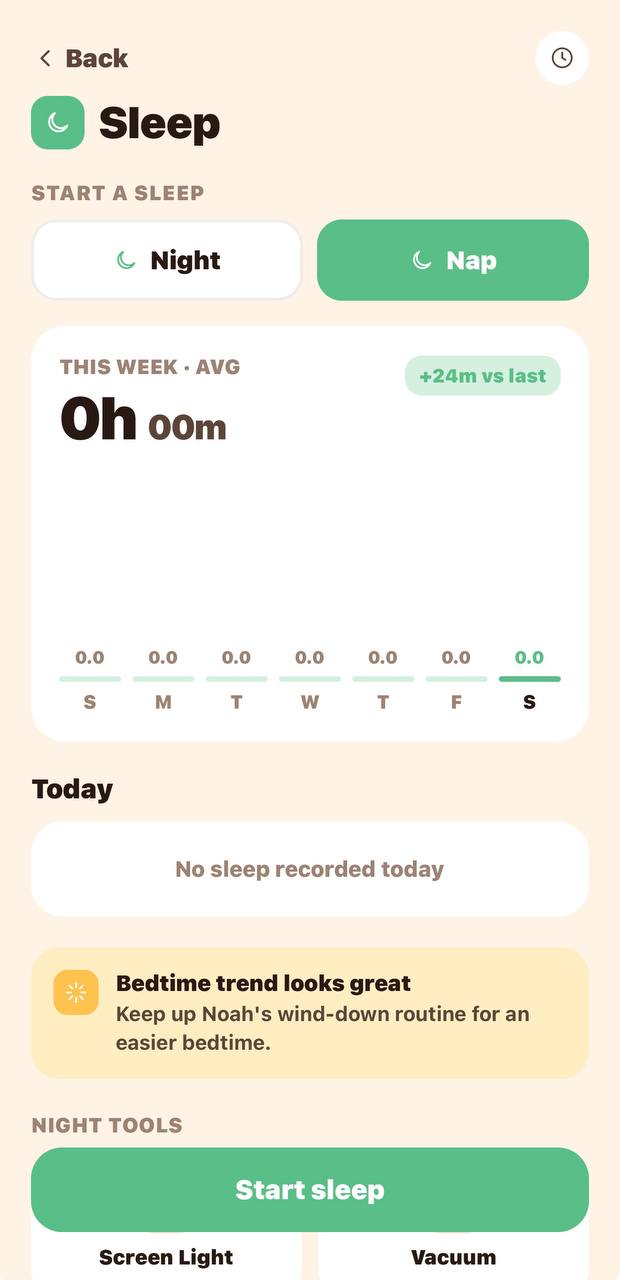
Yes. The Sleep screen shows a chart for the last seven days and an average based on your recorded sleep. Days without entries are included in the average, so an incomplete log can make it lower. These figures describe your entries, not a recommended amount of sleep.
Can one caregiver use an iPhone and another use Android?
Yes. BabyGrow is available on both platforms. Join the same family, select the same child and use an account with tracker access to share the sleep log.
How do I find an older nap?
Tap the clock icon on the Sleep screen to open history. Choose a date range, then filter for Nap or Night. Additional filters let you narrow the list by duration.
Does BabyGrow recommend a sleep schedule?
The sleep tracker records timers and helps you review the entries. It does not prescribe a sleep schedule or guarantee better sleep.